Replacing a Personal Trainer's Paperwork: PAR-Q, E-Signatures, Jotform, Zoho SMTP and a Branded PDF
The follow-up to the Armour Coach brand build. I added a privacy notice to his site, asked him how he takes client information while I was writing it, and ended up replacing two Word documents with one branded form that takes real signatures, produces a signed PDF, emails it from his own address and sends the client back to his own site.

I had just written a privacy notice for NMC Sports Therapy, so I decided to do the same for Stephen. His site collects a name, an email address and a message through the contact form, and it had nothing on it saying what happens to any of that. Having the page is also part of looking like a business rather than a bloke with a website.
Writing that page meant asking him how he actually takes client information, so I messaged him to ask whether a new client fills anything in for health.
Deniz: When you get a new client, do you have them complete any forms for health etc?
Stephen: I do mate, and I was gonna ask you when I seen you, if I sent them to you could you work your magic and make them go alongside my brand and colours so all is aligned and looks the same?
Deniz: Funnily enough I was just working on a little privacy page about how you handle clients’ data, then I got a good idea that will create a very good first professional impression
Stephen: Which is??
Deniz: Are your forms digital? What’s the process so far with them
Stephen: They are Word documents. What usually happens is I will have my laptop when I’m signing them up. We go through all the forms and fill them out, then save them to the laptop in their own files. And then email any documents to them that we have gone through and signed.
He was asking for two Word documents in his colours. What he had actually described was every client health record he holds sitting in one folder on one laptop, so the branding was the smaller half of it.
That is where I got an idea 💡
The first post covered the brand, the site on his own AWS account, the mailbox on his domain and the business card. Here is what came out of this one:
- A privacy notice at armourcoach.com/privacy.html, written from what his site actually does
- A client onboarding form that merges his PAR-Q and his training agreement into one
- Conditional health questions that open a detail box on every yes
- Real e-signatures from the client, from Stephen, and from a parent where the client is under 18
- A branded signed PDF sent to both of them automatically
- Emails from his own address over Zoho SMTP rather than a form company’s noreply
- A confirmation page on his own site at armourcoach.com/thank-you.html
- A handover PDF written for him rather than for an engineer
graph TD
    A["Stephen and client<br/>sit down at the laptop"] --> B["One form<br/>details, goals, PAR-Q, consent, terms"]
    B --> C["Both sign on screen"]
    C --> D["Submit"]
    D --> E["Signed PDF generated"]
    E --> F["Email to Stephen<br/>from his own address"]
    E --> G["Email to client<br/>with their copy"]
    D --> H["Record stored online"]
    D --> I["Client sees confirmation<br/>on armourcoach.com"]

    style A fill:#1a1a1a,stroke:#c9a227,color:#fff
    style B fill:#0d0d0d,stroke:#c9a227,color:#fff
    style C fill:#0d0d0d,stroke:#c9a227,color:#fff
    style D fill:#0d0d0d,stroke:#c9a227,color:#fff
    style E fill:#0d0d0d,stroke:#c9a227,color:#fff
    style F fill:#c9a227,stroke:#fff,color:#000
    style G fill:#c9a227,stroke:#fff,color:#000
    style H fill:#0d0d0d,stroke:#c9a227,color:#fff
    style I fill:#c9a227,stroke:#fff,color:#000
The Privacy Page
I built the page from what the site does, not from a template. The contact form collects a name, an email address and a message, and nothing else. There are no cookies, no analytics, and no third-party requests anywhere on the site, so the page says exactly that rather than hedging with the usual legal padding.
The health section is the longest part of it. A personal trainer holds records that count as special category data under UK GDPR, so that part of the page explains what he collects, why he cannot programme safely without it, that he takes it with explicit consent, and how long he keeps it. The last section points at the ICO.
The page is reachable from two places. There is a link in the footer, and a line inside the contact form explaining what happens to a message when you send it. I put that line inside the form itself rather than next to it, because the booking button lifts the whole form into a popup, and anything sitting inside it travels with it. The same sentence turns up in both the page and the popup, and there is only one copy of it to keep up to date.
The PAR-Q Question
I had called his health questionnaire a PAR-Q on the privacy page before I had seen it, because that is what every gym calls the form. Then I went and found out what the letters actually stood for, rather than leaving a word on his site that I could not define.
It reads like a British form and it is not one. The Physical Activity Readiness Questionnaire came out of British Columbia’s health ministry in the 1970s and is now maintained by the Canadian Society for Exercise Physiology. It spread internationally and became the default screening form in UK gyms for decades, which is why it feels British.
The industry has partly moved away from it. Around 2015 ukactive pushed the Health Commitment Statement as a replacement for gym sign-ups, on the argument that a PAR-Q implied the operator had medically screened you when it had not. The big chains mostly swapped over. That change was about gym membership though. One-to-one training is different, because Stephen needs actual clinical detail to programme safely.
So I left the wording neutral in three spots on the privacy page until I had read his actual form, rather than naming a standard he might not be following.
His Actual Documents
The two files arrived as PAR Q OFFICIAL .docx and PT CLIENT AGREEMENT.docx.
The sit-down he described is the strong part. He has actually read what they wrote, they can ask questions, and it becomes a proper onboarding rather than a link somebody skims on the bus. Plenty of trainers fire over a Google Form and never look at it again.
The laptop is the problem. It holds the only copy. If it goes missing or the drive dies, every client health record goes with it, and that is a personal data breach involving special category data. Word files also drift, because copying one and editing it means different clients end up on different versions of the same form. Thirty files in thirty folders are not searchable either, so before a group session he cannot check who has the knee problem without opening all of them.
Why Jotform
Jotform is an online form builder. You assemble a form in the browser, it hosts the page, and it stores every submission in an online table. It also does two things a plain form does not. It takes a real e-signature drawn on screen, and it turns each completed submission into a PDF that it emails out on its own.
Those two are the reason I used it. The signature and the audit trail behind it are the part that has to hold up if an insurance claim ever needs the paperwork, and that is not something I want to write myself and then vouch for. Everything else in the build is styling and settings around those two.
The account is free at the volume he works at. Costs and limits are further down.
Merging Two Documents Into One
I pulled the text out of both files and rebuilt them as one form of nine sections, covering client details, goals, the seven PAR-Q questions, extra health questions, GP clearance, informed consent, the training agreement, package details, and sign-off.
His wording stayed almost entirely intact. Ten things changed, tagged so he could approve them in two minutes rather than reading the whole thing again. I added an emergency contact, an under-18 block with a guardian signature, photo and video consent, a data protection tick linking to the privacy page, and a detail box on each PAR-Q question where the paper version had one box shared across all seven.
Two clauses were out of date. The refund clause said “due to the pandemic”, and the confidentiality clause promised his information would be “used only by the program staff”, which is gym-chain wording from a document written before current data protection law. He has no staff. One line came out entirely, because the agreement asked the client to confirm they had no medical condition affecting their training and the PAR-Q already covers that across seven questions.
The gym name and the £45 session price were typed into the master document, so every price change meant editing the original. They are fields now.
Building It
The form runs to 62 fields across those nine sections, and nine conditions drive what the client actually sees.
Seven of those conditions do the same job, one per PAR-Q question. Answer yes to the chest pain question and a detail box opens underneath it. Answer no and it stays closed. An eighth condition reveals the GP clearance block when any of the seven answers is yes, and a ninth shows the “reasonably safe to participate” text when all seven are no. The under-18 block hangs off a plain yes or no question rather than a date calculation, because a date-based rule breaks the day the client has a birthday.
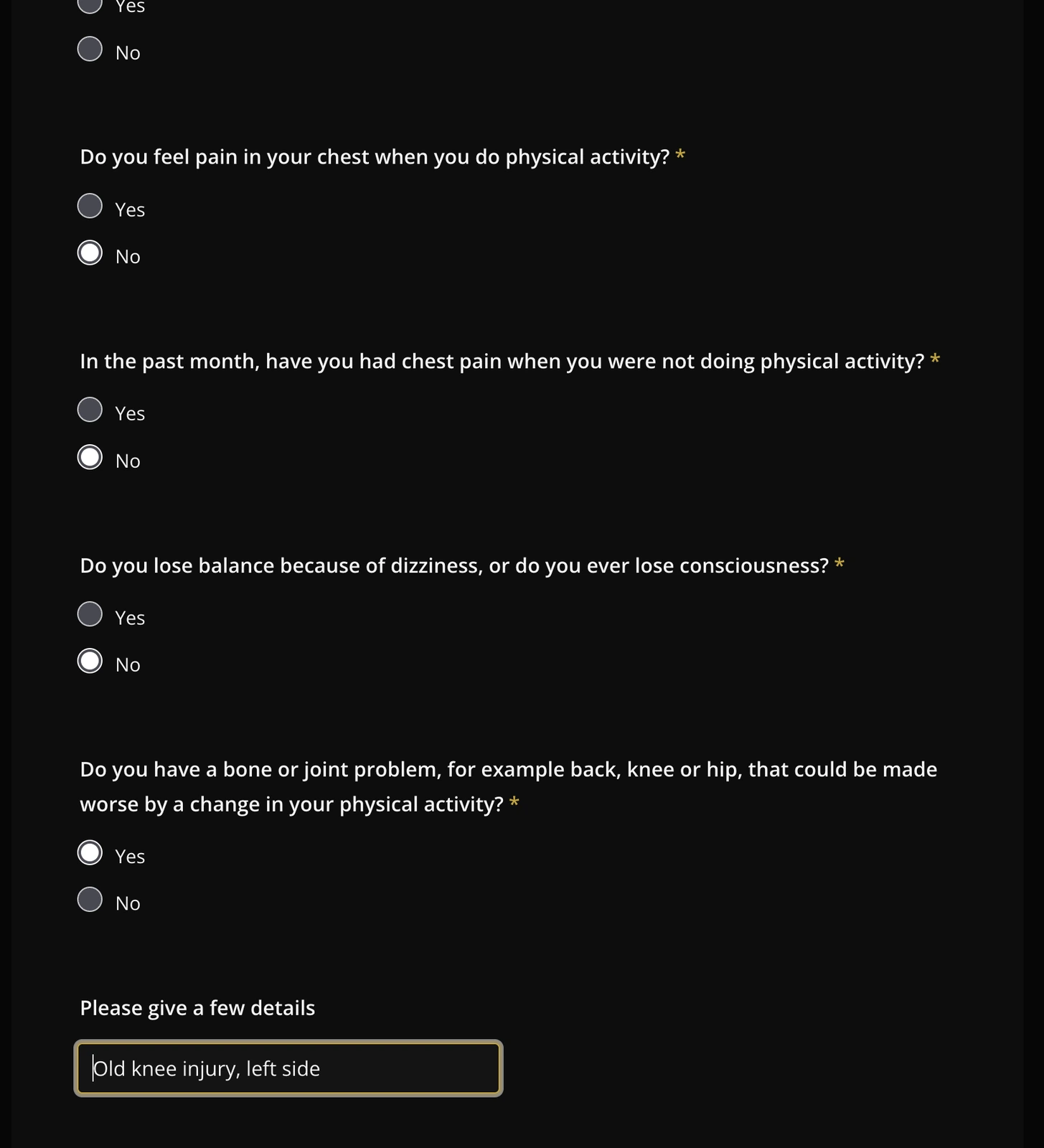 A yes on the bone and joint question opens a detail box under that question alone, while the three answered no stay closed.
Signatures are real signature fields rather than typed names. The client signs, Stephen signs, and a parent or guardian signs where the client is under 18. Jotform stamps each signed PDF with an IP address, a timestamp, a browser fingerprint and a document ID.
The look came from the site. The form is near-black with his shield logo at the top, the same heavy widely spaced type the site uses, gold section headings, a gold outline on whichever field you are typing in, and a gold submit button. Jotform’s own designer covers colours and fonts, and everything past that goes in a custom CSS panel.
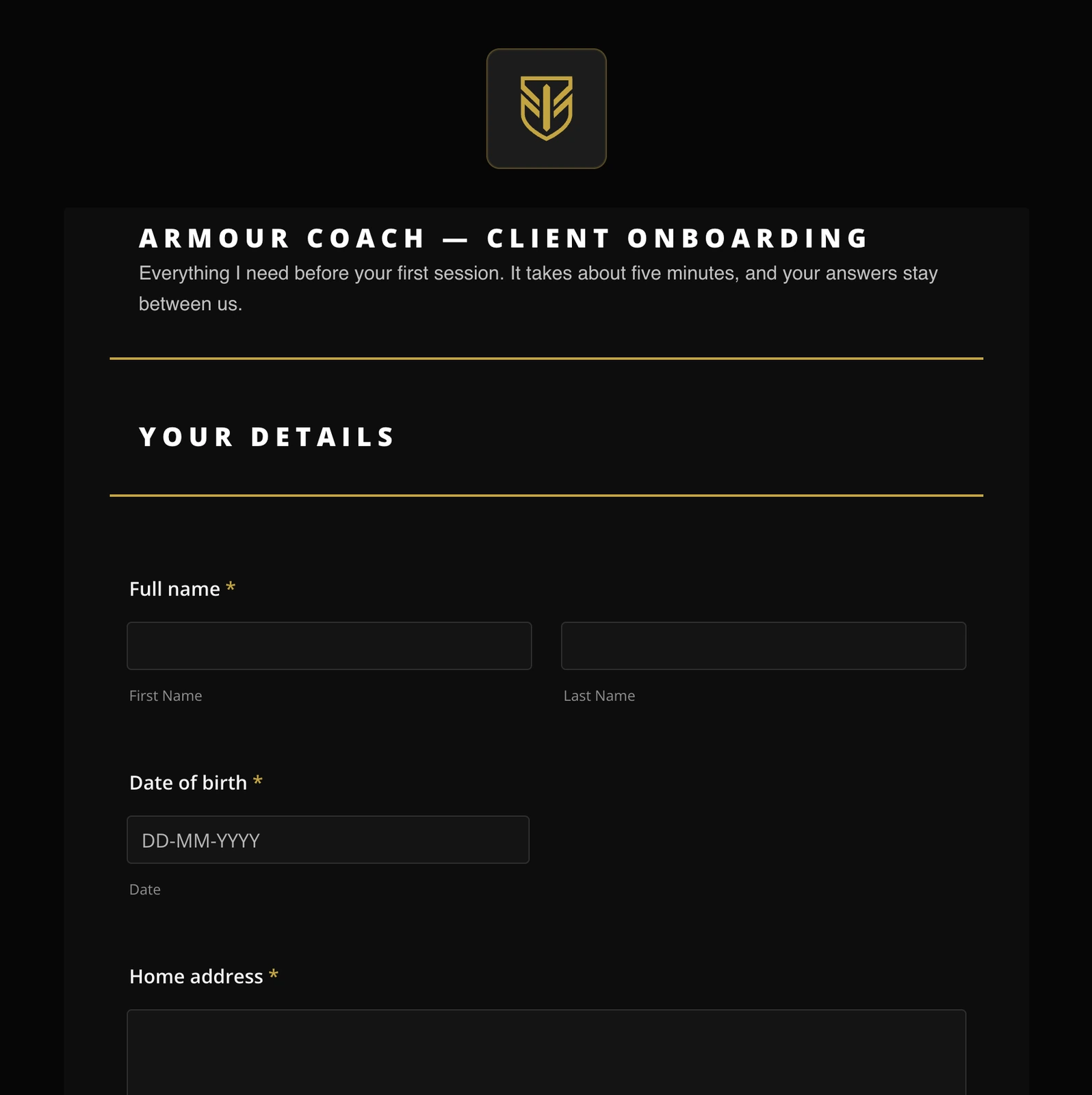 The form opens on the shield and his name, sitting on the same near-black the site uses.
Validation was the other change. Jotform marks an unanswered required field with a full-width red block and a pointer arrow, and on a form this long you get a wall of them. It now renders as a thin gold bar down the left edge of the field, a gold border on the input, and small gold text underneath. It still tells you what is missing without shouting.
The Signed PDF
Every submission produces a PDF, and the default one is Jotform’s plain layout. I rebuilt it in the PDF editor with the shield at the top left, the section headings in gold, and the signatures rendered as images at the bottom.
Two settings changed how it comes out. Empty fields are hidden, so a client who answers no to all seven questions gets a two-page document instead of a five-page one full of blanks. The file name is built from the client’s name plus a fixed suffix, so Stephen’s inbox fills with John Smith - Armour Coach Onboarding.pdf rather than thirty files called Submission.
Emails From His Own Address
Jotform sends form email from its own noreply address by default. The signup email is often the first thing a new client sees from him in writing, so that address undoes some of what the brand was for.
Buying the domain and putting his mail on it was the whole point of the first build. Everything carrying his name comes from the same place. A client who gets their paperwork from noreply@jotform.com has been handed a form by a form company, and a client who gets it from stephen@armourcoach.com has been handed it by their trainer. I do not know how many people consciously clock that difference. I notice it on every email I get, so I build for the client who does.
His mailbox already runs on Zoho at stephen@armourcoach.com, and Jotform accepts SMTP credentials directly, so the mail goes out through the mailbox he already pays for.
| Field | Value |
|---|---|
| Host | smtp.zoho.eu |
| Port | 465 |
| Security | SSL |
| Username | stephen@armourcoach.com |
| Password | Zoho app-specific password |
Zoho issues app-specific passwords from Settings, Security, App Passwords. The password displays once at generation and cannot be retrieved afterwards. It can be revoked from the same screen at any time, and revoking it does not affect the account password or mailbox access.
Adding the sender does not switch anything over on its own. The details from that table go in under Settings, Emails, Sender Email, Add New Sender, and Jotform sends a test message through them before it will save the sender at all. All that does is put his address in a dropdown.
The form sends two emails, a notification to Stephen and an autoresponder to the client, and each one carries its own sender setting. So I opened both, set Sender Name and Sender Email to his address on each, and only then did anything actually leave from stephen@armourcoach.com. Reply-to goes the opposite way on each. The notification replies to the client’s email field so Stephen can answer straight from his inbox, and the autoresponder replies to Stephen so the client reaches him.
Where The Client Ends Up
Jotform’s own thank-you screen has a purple divider and a dark navy heading on near-black, which is unreadable and not his brand. It also has a redirect option, so the client goes to a page on his own site instead.
I built thank-you.html from the same structure as the privacy page. It carries the same header, footer, shield and type as the rest of the site, with a short what-happens-next box and a line asking them to tell him if their health changes before the first session.
The page is set to noindex because the URL is publicly reachable by anyone who guesses it, and it holds no client data at all. Jotform offers an option to pass field values into the redirect as query parameters, and that stays off. Turning it on would put client details in a browser address bar and in server logs.
The privacy page needed one more edit at the same time. The section listing who else can see your information named AWS and his email provider. Client health data and signatures were about to start flowing into Jotform, so the page was out of date until it said so. It now names Jotform, says what it stores, says it is a US company, and says the enquiry form on the site does not go through it.
What The Free Tier Actually Limits
| Allowance | Limit | Detail |
|---|---|---|
| Signed documents | 10 a month | Every signup uses one |
| Submissions | 100 a month | Not a practical limit |
| Form views | 10,000 a month | Not a practical limit |
| Stored records | 500 total | Roughly four years at ten a month |
Ten signed documents a month is the only figure that constrains him, and it resets on the 3rd. For one-to-one work that covers it. The number that eventually forces a decision is the 500 total, because he is meant to keep these records for years for insurance purposes, so that is a lifetime ceiling rather than a rolling one.
Why I Did Not Build It On AWS
I thought about it. It would run as a form page on his site, an endpoint into Lambda, the signature saved as an image, the records in a private S3 bucket and a small admin page over the top. It is a day or two of work and I would enjoy it.
Two things stopped me. The signature audit trail is the actual product, and Jotform stamping an IP, a timestamp and a tamper-evident ID on every signed PDF is what holds up in an insurance claim, so rolling my own makes me the one asserting it is sound. And Stephen cannot fix a broken Lambda at eight in the evening, which turns a delivered piece of work into a permanent on-call rotation for one client.
The annoying part is the branding. Jotform’s name sits on the form, in the emails and on the PDF the client keeps, and repeating it everywhere is the nudge to buy the paid plan to take it off. Building a system I have to keep alive to remove somebody else’s logo is a bad trade, so the logo stays.
The Build Order
This is the order I would follow a second time, with the menu path for each step. All of it happens in the browser.
| # | Where | What to do |
|---|---|---|
| 1 | Account settings | Verify the account email. Jotform sends no form email at all until you do |
| 2 | My Forms | Create Form, Start From Scratch, Classic Form |
| 3 | Build, Add Element | Drag in Heading, Name, Email, Phone, Date, Short Text, Long Text, Single Choice, Multiple Choice and Signature |
| 4 | Settings, Conditions | Add Condition, Show / Hide Field, one per PAR-Q question |
| 5 | Build, paint roller icon | Styles for the colours and the font, Inject Custom CSS below it |
| 6 | The form title | Add Logo, then size it in the CSS panel |
| 7 | My Forms, form arrow, PDF Editor | Document Settings for the file name and Hide Empty Fields |
| 8 | Settings, Emails | Open each email, Advanced tab, Attach PDF, pick the branded document |
| 9 | Settings, Emails, Sender Email | Add New Sender, the SMTP details, send the test before saving |
| 10 | Both emails again | Set Sender Name, Sender Email and Reply-to |
| 11 | Settings, Thank You Page | Redirect to an external link, leave pass field values off |
| 12 | Publish | Copy the link and fill it in once as a real client |
Three of those steps caught me out. The custom CSS panel rejects the tidy way of writing colours once and reusing them, so every colour has to be typed out in full each time it appears. The Attach PDF step offers Jotform’s plain document as well as the branded one, and it picks the plain one for you, so the emails go out with the wrong file until you change it. And the file name is assembled from answers on the form, so putting an optional question in it leaves a stray gap in the name of every client who skipped that question.
Wrapping Up
The tally comes to this. Stephen has a privacy notice on his site, a single onboarding form that replaces two Word documents, conditional health questions that open on every yes, e-signatures from the client and from him, a branded signed PDF that reaches both of them automatically, emails sent from his own address over his own mailbox, a confirmation page on his own domain, an updated privacy page naming every service that touches client data, and a handover document written for him.
It runs on the free tier and uses the mailbox and website he already pays for, so the running cost of all of it is nothing.
I went in to add a privacy page. I came out having rebuilt his signup.