A self-hosted photo gallery for Jekyll Chirpy
How I built a self-hosted photo gallery into my Jekyll Chirpy site. S3 and CloudFront for image hosting, custom layouts for album pages, Fancybox for lightbox viewing, and Lightroom for the export pipeline. Designed so anyone with a Chirpy site can replicate it.
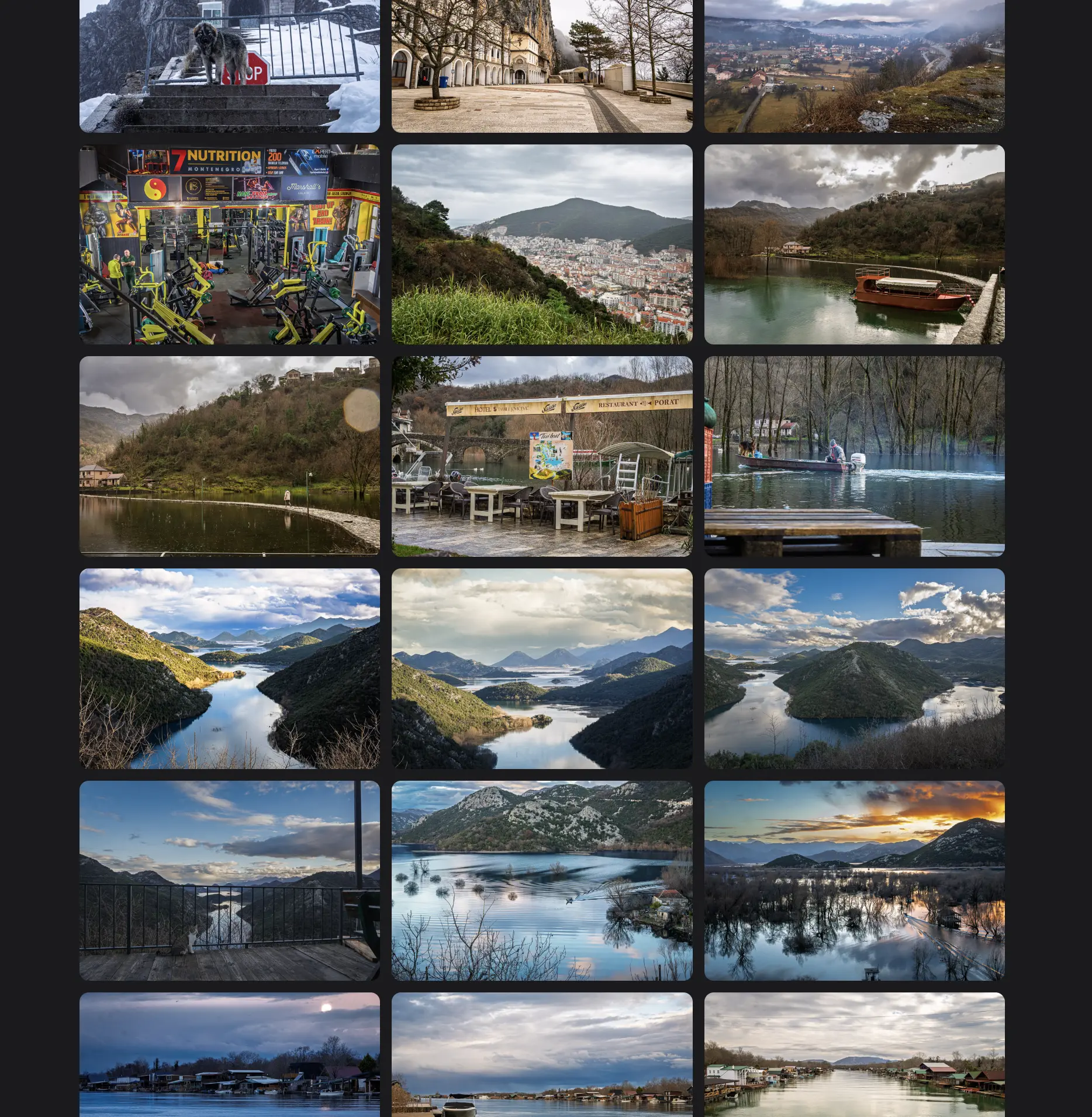
I shoot on a Sony A6700 and travel a fair bit. Each trip generates hundreds of photos. I do not use social media, and I did not want to dump them in a Google Drive folder or pay for Squarespace. I wanted a gallery built into the site I already write on, with my own infrastructure, my own URLs, and no compression.
This is how the system works.
The Architecture
Photos are hosted on S3 and served through CloudFront on a custom subdomain. The Jekyll site stays small and fast on GitHub Pages. The photo files never live in the repo.
graph TD
    A[Visitor] --> B[denizyilmaz.cloud<br/>GitHub Pages]
    B --> C["/gallery/<br/>album index"]
    B --> D["/gallery/album-name/<br/>grid + lightbox"]

    C -.thumb.-> E[photos.denizyilmaz.cloud<br/>CloudFront]
    D -.thumb.-> E
    D -.full on click.-> E

    E --> F[S3 bucket<br/>gallery/album-name/]
    F --> G[full/<br/>3000px JPEGs]
    F --> H[thumbs/<br/>800px JPEGs]
When someone visits the gallery, the page loads from GitHub Pages. The img tags fetch thumbnails from CloudFront. When they click a photo, Fancybox opens and loads the full-resolution version from the same CDN. The visitor never sees the S3 URL.
Why not just put photos in the repo
A week of A6700 photos is hundreds of megabytes. GitHub Pages has a soft repo size limit around 1GB. Pushing photos through git also makes deploys slow and clones painful. S3 keeps the repo light and the photos decoupled from the site code.
AWS Setup
The cloud side is three resources: a private S3 bucket, a CloudFront distribution with Origin Access Control, and a Route 53 A record alias.
S3 Bucket
Create a bucket in your closest region. I use eu-west-2. Do not put dots in the bucket name. Dotted names break HTTPS access via the default S3 endpoint and cause cert mismatch errors with CloudFront. Use hyphens: denizyilmaz-gallery, not denizyilmaz.gallery.
Block all public access. The bucket should never be accessible directly.
CloudFront Distribution
Create a distribution with the S3 bucket as the origin. Enable Origin Access Control (OAC), the modern replacement for OAI. CloudFront will generate the bucket policy you need, which looks like this:
1
2
3
4
5
6
7
8
9
10
11
12
13
14
15
{
  "Version": "2008-10-17",
  "Statement": [{
    "Sid": "AllowCloudFrontServicePrincipal",
    "Effect": "Allow",
    "Principal": { "Service": "cloudfront.amazonaws.com" },
    "Action": "s3:GetObject",
    "Resource": "arn:aws:s3:::denizyilmaz-gallery/*",
    "Condition": {
      "ArnLike": {
        "AWS:SourceArn": "arn:aws:cloudfront::ACCOUNT_ID:distribution/DISTRIBUTION_ID"
      }
    }
  }]
}
Paste that into the bucket’s permissions tab.
TLS Certificate
Request a wildcard cert in ACM in us-east-1, even if your bucket lives in another region. CloudFront only reads certs from us-east-1. Cover *.denizyilmaz.cloud plus the apex domain in the same cert so you can reuse it for future subdomains.
DNS validation is the easy path. If your domain is in Route 53, ACM gives you a one-click button to add the CNAME records automatically.
Custom Domain
Back in CloudFront, add photos.denizyilmaz.cloud as the alternate domain name and select the wildcard cert from the dropdown.
Then in Route 53, create an A record alias for photos.denizyilmaz.cloud pointing at the CloudFront distribution. Toggle Alias on, select “Alias to CloudFront distribution,” pick yours from the list.
After a few minutes of DNS propagation, photos are accessible at:
1
https://photos.denizyilmaz.cloud/gallery/album-name/full/photo.jpg
Test before moving on
Upload one test file to S3, thencurl -Ithe CloudFront URL. You should get a200 OK. If you get403, the OAC or bucket policy is not wired correctly. Fix that before adding the custom domain.
Jekyll Setup
The Jekyll side is four files plus two config additions. Nothing touches existing posts, layouts, or themes beyond what is listed here.
Config
Add the gallery collection to _config.yml:
1
2
3
4
5
6
7
collections:
  tabs:
    output: true
    sort_by: order
  gallery:
    output: true
    sort_by: date
And the default layout and permalink for gallery items:
1
2
3
4
5
6
7
defaults:
  - scope:
      path: ""
      type: gallery
    values:
      layout: gallery-album
      permalink: /gallery/:title/
Sidebar Tab
_tabs/gallery.md:
1
2
3
4
5
6
---
layout: gallery
icon: fas fa-camera
order: 5
title: Gallery
---
The order value controls position in the Chirpy sidebar. Adjust to slot it where you want.
Gallery Index Layout
_layouts/gallery.html renders the album cards on /gallery/. The covers load from /thumbs/ not /full/. Loading full-resolution JPEGs as small card thumbnails wastes bandwidth and slows the page badly once you have more than a handful of albums.
The cards also fade in sequentially with a waterfall animation. Each card starts invisible and slightly offset, then slides up into place 150ms after the one before it. This is a stylistic choice borrowed from cinematic portfolio sites. It makes the page feel intentional rather than instantly popping in.
1
2
3
4
5
6
7
8
9
10
11
12
13
14
15
16
17
18
19
20
21
22
23
24
25
26
27
28
29
30
31
32
33
34
35
36
37
38
39
40
41
42
43
44
45
46
47
48
49
50
51
52
53
54
55
56
57
58
59
60
61
62
63
64
65
66
67
68
69
70
71
72
73
74
75
76
77
78
79
80
81
82
83
84
85
86
87
88
89
90
91
92
93
94
95
---
layout: page
refactor: true
---

<style>
  .gallery-albums {
    display: grid;
    grid-template-columns: repeat(auto-fill, minmax(300px, 1fr));
    gap: 1.5rem;
    margin-top: 1rem;
  }
  .album-card {
    position: relative;
    border-radius: 12px;
    overflow: hidden;
    aspect-ratio: 4 / 3;
    cursor: pointer;
    opacity: 0;
    transform: translateY(20px);
    transition: opacity 0.6s ease, transform 0.6s ease;
  }
  .album-card.is-visible {
    opacity: 1;
    transform: translateY(0);
    transition: transform 0.3s ease, box-shadow 0.3s ease, opacity 0.3s ease;
  }
  .album-card.is-visible:hover {
    transform: translateY(-4px);
    box-shadow: 0 12px 32px rgba(0, 0, 0, 0.4);
  }
  .album-card img {
    width: 100%;
    height: 100%;
    object-fit: cover;
    transition: transform 0.4s ease;
  }
  .album-card.is-visible:hover img {
    transform: scale(1.05);
  }
  .album-card .album-overlay {
    position: absolute;
    bottom: 0;
    left: 0;
    right: 0;
    padding: 1.5rem 1.2rem 1rem;
    background: linear-gradient(transparent, rgba(0, 0, 0, 0.85));
    color: #fff;
  }
  .album-card .album-overlay h3 {
    margin: 0 0 0.2rem;
    font-size: 1.2rem;
    font-weight: 600;
    color: #fff;
  }
  .album-card .album-overlay p {
    margin: 0;
    font-size: 0.85rem;
    opacity: 0.8;
    color: #ddd;
  }
  @media (max-width: 576px) {
    .gallery-albums { grid-template-columns: 1fr; }
  }
</style>

<div class="gallery-albums" id="gallery-index">
  {% assign albums = site.gallery | reverse %}
  {% for album in albums %}
    <a href="{{ album.url }}" class="album-card" style="text-decoration: none;">
      <img src="{{ album.cdn_base }}/thumbs/{{ album.cover }}" alt="{{ album.title }}" loading="lazy">
      <div class="album-overlay">
        <h3>{{ album.title }}</h3>
        <p>{{ album.description | default: album.date_range }}</p>
      </div>
    </a>
  {% endfor %}
</div>

{{ content }}

<script>
  (function() {
    var container = document.getElementById('gallery-index');
    if (!container) return;
    var cards = container.querySelectorAll('.album-card');

    // Waterfall fade-in
    cards.forEach(function(card, index) {
      setTimeout(function() {
        card.classList.add('is-visible');
      }, index * 150);
    });
  })();
</script>
A few things worth noting about the fade-in:
- Cards start with
opacity: 0andtranslateY(20px). Theis-visibleclass transitions them to full opacity and their natural position. - Hover effects are scoped to
.is-visible:hoverso they only apply once the fade-in completes. This prevents the card from jumping around if the user hovers mid-animation. - The 150ms stagger means 10 albums finish cascading in 1.5 seconds. Feels deliberate without being slow.
Album Detail Layout
_layouts/gallery-album.html renders a single album. The header shows the description, date range, camera, and auto-counted photo total. The grid below uses CSS Grid (not masonry) because A6700 photos are all the same aspect ratio. Masonry only helps when image heights vary.
Photos in the grid use the same waterfall fade-in as the album cards, but with a tighter 100ms stagger so big albums do not feel slow.
1
2
3
4
5
6
7
8
9
10
11
12
13
14
15
16
17
18
19
20
21
22
23
24
25
26
27
28
29
30
31
32
33
34
35
36
37
38
39
40
41
42
43
44
45
46
47
48
49
50
51
52
53
54
55
56
57
58
59
60
61
62
63
64
65
66
67
68
69
70
71
72
73
74
75
76
77
78
79
80
81
82
83
84
85
86
87
88
89
90
91
92
93
94
95
96
97
98
99
100
---
layout: page
refactor: true
---
<link rel="stylesheet" href="https://cdn.jsdelivr.net/npm/@fancyapps/ui@5.0/dist/fancybox/fancybox.css">
<style>
  .album-header { margin-bottom: 2rem; }
  .album-header p { margin: 0; opacity: 0.7; font-size: 0.95rem; }
  .album-header .album-meta { display: flex; gap: 1.5rem; margin-top: 0.5rem; font-size: 0.85rem; opacity: 0.6; }
  .masonry-grid { display: grid; grid-template-columns: repeat(3, 1fr); gap: 10px; }
  .masonry-grid .gallery-item {
    border-radius: 8px;
    overflow: hidden;
    cursor: pointer;
    opacity: 0;
    transform: translateY(20px);
    transition: opacity 0.6s ease, transform 0.6s ease;
  }
  .masonry-grid .gallery-item.is-visible {
    opacity: 1;
    transform: translateY(0);
    transition: opacity 0.3s ease;
  }
  .masonry-grid .gallery-item.is-visible:hover {
    opacity: 0.85;
  }
  .masonry-grid .gallery-item img { width: 100%; height: 100%; object-fit: cover; display: block; pointer-events: none; }
  .masonry-grid .gallery-item a.popup,
  .masonry-grid .gallery-item a.img-link { display: contents !important; pointer-events: none !important; }
  @media (max-width: 992px) {
    .masonry-grid { grid-template-columns: repeat(2, 1fr); }
  }
  @media (max-width: 576px) {
    .masonry-grid { grid-template-columns: repeat(2, 1fr); gap: 6px; }
    .masonry-grid .gallery-item { border-radius: 4px; }
  }
</style>

<div class="album-header">
  {% if page.description %}<p>{{ page.description }}</p>{% endif %}
  <div class="album-meta">
    {% if page.date_range %}<span>{{ page.date_range }}</span>{% endif %}
    {% if page.camera %}<span>{{ page.camera }}</span>{% endif %}
    {% if page.photos %}<span>{{ page.photos | size }} photos</span>{% endif %}
  </div>
  {% if page.blog_post %}
    <p style="margin-top: 0.8rem;"><a href="{{ page.blog_post }}">Read related posts →</a></p>
  {% endif %}
</div>

<div class="masonry-grid" id="album-grid">
  {% for photo in page.photos %}
    <div class="gallery-item"
         data-full="{{ page.cdn_base }}/full/{{ photo.file }}"
         data-caption="{{ photo.caption }}">
      <img
        src="{{ page.cdn_base }}/thumbs/{{ photo.file }}"
        alt="{{ photo.caption | default: page.title }}"
        loading="lazy"
      >
    </div>
  {% endfor %}
</div>

{{ content }}

<script src="https://cdn.jsdelivr.net/npm/@fancyapps/ui@5.0/dist/fancybox/fancybox.umd.js"></script>
<script>
  (function() {
    var container = document.getElementById('album-grid');
    if (!container) return;
    var items = container.querySelectorAll('.gallery-item');

    // Waterfall fade-in
    items.forEach(function(item, index) {
      setTimeout(function() {
        item.classList.add('is-visible');
      }, index * 100);
    });

    var albumData = [];
    items.forEach(function(item, i) {
      albumData.push({
        src: item.getAttribute('data-full'),
        type: 'image'
      });
      item.addEventListener('click', function(e) {
        e.preventDefault();
        e.stopPropagation();
        Fancybox.show(albumData, {
          startIndex: i,
          Toolbar: { display: { left: [], middle: [], right: ["close"] } },
          Thumbs: false,
          Slideshow: false,
          Images: { zoom: false }
        });
      });
    });
  })();
</script>
A few things worth noting in this file:
- Photo count is computed from the photos list with
{{ page.photos | size }}. No manual counter to maintain. e.stopPropagation()on the click handler prevents Chirpy from hijacking the click and opening its own built-in lightbox.pointer-events: noneon the img stops the image itself from being clickable so the click always lands on the parent div.- Fancybox is loaded from CDN. No build step, no npm install.
- The waterfall fade-in is driven by a JS timer, not image load events. Photos slot in on schedule regardless of network speed. The image just pops into its already-visible container when it finishes loading.
Album Data Files
Each album is a markdown file in _gallery/. The front matter is the entire album definition. No body content is needed.
1
2
3
4
5
6
7
8
9
10
11
12
13
14
15
16
17
18
19
---
title: "Montenegro"
description: "A week in Montenegro. Mountains, coast, snow, and rain."
date: 2026-01-27
date_range: "January 2026"
camera: "Sony A6700 · 18-135mm"
blog_post: /posts/montenegro-january-2026/

cdn_base: https://photos.denizyilmaz.cloud/gallery/montenegro-2026

cover: montenegro-gallery-11.jpg

photos:
  - file: montenegro-gallery-1.jpg
    caption: ""
  - file: montenegro-gallery-2.jpg
    caption: ""
  # ... more photos
---
The cdn_base is the CloudFront URL for the album folder. The layout appends /full/ or /thumbs/ and the filename to construct each image URL. The cover is the filename used for the card on the gallery index. The photos list is rendered in order, so arrange them deliberately if you want a sequenced flow.
The layout: gallery-album line is not needed in the front matter. _config.yml already sets it as the default for everything in the gallery collection.
For ongoing collections that span multiple trips (e.g. a place you keep returning to), set blog_post to a category page URL like /categories/bodrum/ and the album header link will surface all related posts.
Lightroom Workflow
Two exports per album. Same filenames in both folders.
| Export | Long edge | Quality | Folder |
|---|---|---|---|
| Full | 3000px | 93 | ~/Pictures/album-name/full/ |
| Thumb | 800px | 75 | ~/Pictures/album-name/thumbs/ |
Both as JPEG, sRGB colour space.
Upload to S3:
1
2
3
cd ~/Pictures/album-name
aws s3 sync full/ s3://denizyilmaz-gallery/gallery/album-name/full/
aws s3 sync thumbs/ s3://denizyilmaz-gallery/gallery/album-name/thumbs/
Then create the album file in _gallery/, commit, push. GitHub Actions builds the site, the gallery index picks up the new album automatically.
CloudFront cache
If you replace an existing photo (same filename, new content), CloudFront serves the cached version for up to 24 hours. Either invalidate the cache from the CloudFront console, or use a new filename for the new photo.
Replicating This
If you run a Jekyll site with Chirpy, the build order is:
- AWS. Create the S3 bucket, set up CloudFront with OAC, request the wildcard cert in
us-east-1, add the alternate domain, create the Route 53 alias. Test withcurl -Iagainst the CloudFront URL. - Jekyll. Add the collection and defaults to
_config.yml, create_tabs/gallery.md,_layouts/gallery.html, and_layouts/gallery-album.html. Use the code in this post. - First album. Export from Lightroom into
full/andthumbs/folders, sync to S3, create_gallery/first-album.mdwith the rightcdn_baseandphotoslist, commit, push.
Adding subsequent albums is just step 3 onward. The infrastructure stays.
Common Pitfalls
A few things to watch for that will cost you time if you skip them.
| Pitfall | Fix |
|---|---|
Bucket name has dots (e.g. denizyilmaz.gallery) | Use hyphens instead. Dotted names break HTTPS via the default S3 endpoint. |
| ACM cert requested in wrong region | CloudFront only uses certs from us-east-1, regardless of where the bucket lives. |
| CloudFront says “domain already in use” but no other distribution has it | Usually means the cert dropdown is pointing at an expired duplicate. Pick the issued one by matching ARN. |
| Cover loads full-res 5MB JPEGs on the gallery index | Change {{ album.cdn_base }}/full/{{ album.cover }} to /thumbs/. |
| Photo count shows wrong number after adding photos | Use {{ page.photos | size }} in the layout, not a manual photo_count field. |
| New photos do not appear after upload | CloudFront cache. Invalidate /* on the distribution, or use new filenames. |
Filenames out of sync between full/ and thumbs/ | Both exports must produce the same filenames. If you re-export only some photos, Lightroom may suffix them with -2 and break the grid. |
| Hover effects fire mid-fade-in and cause cards to jump | Scope hover rules to .is-visible:hover so they only apply after the fade-in completes. |
What I Would Add Next
The current workflow is mostly manual. There are obvious automation wins.
Auto-thumbnailing with Lambda. Drop a full-res photo into S3, Lambda generates the 800px thumbnail automatically. Removes the second Lightroom export.
Auto-album generation. A CLI script that takes a folder of photos, syncs to S3, and writes the _gallery/*.md file with all the filenames already populated.
Auto cache invalidation. A GitHub Action that calls cloudfront create-invalidation whenever an album file changes in _gallery/.
AI captions. Rekognition labels each photo, Bedrock writes captions from the labels and album metadata. Removes the tedious caption-filling step.
The end state is: drop photos into a folder, run one command, push, done. The infrastructure I have already supports it. The missing pieces are scripts.
Documented February 2026.